

A tour of the platform
Find your way around the openJII web platform: the sidebar, Home, command palette, keyboard shortcuts, and notifications.
Once you are signed in, everything in openJII lives inside one consistent shell. This page is a quick visual tour of that shell so you know where to look before diving into experiments and data.
The sidebar
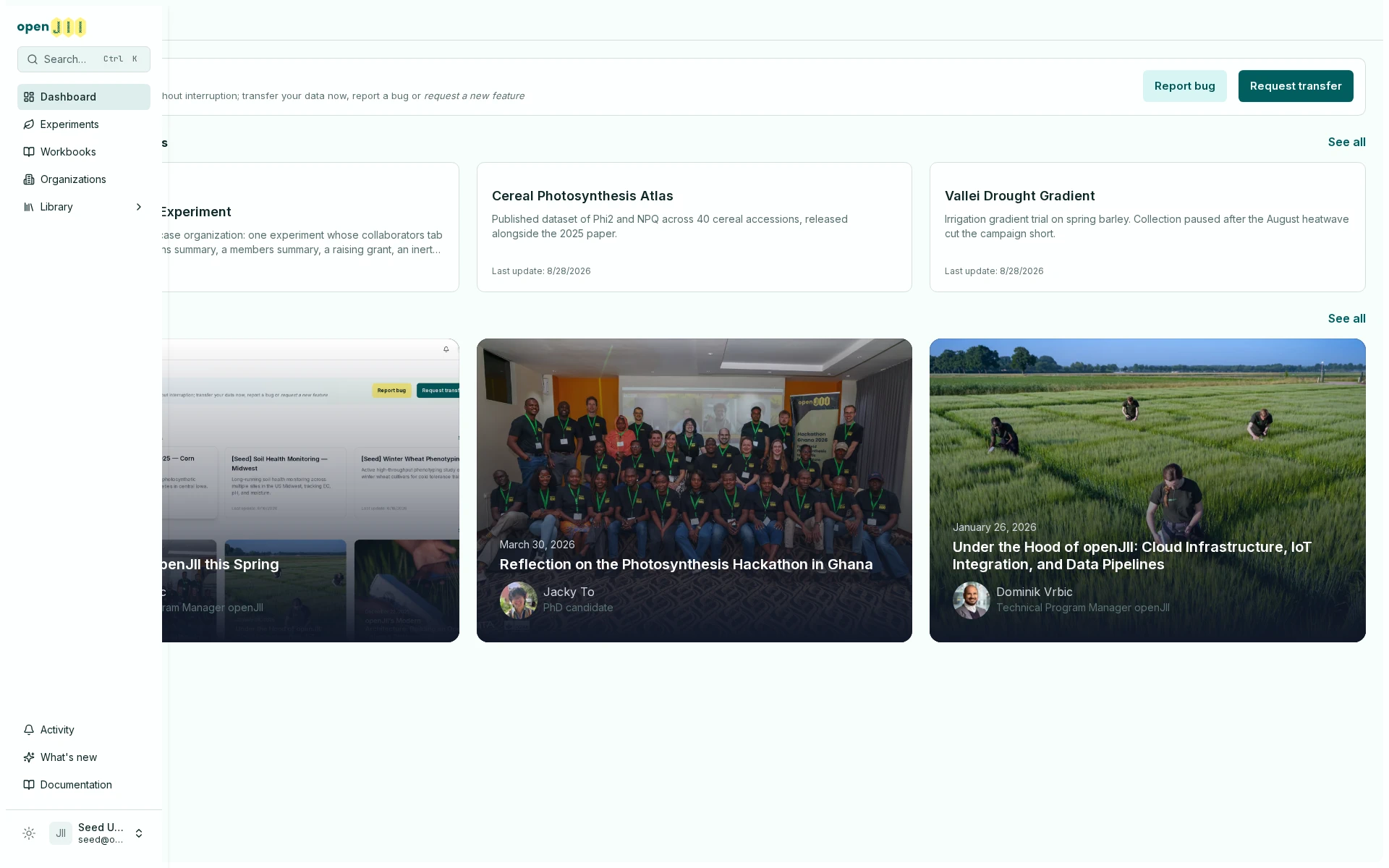
The left sidebar is your main navigation: experiments, protocols, macros, workbooks, organizations, and devices. You can collapse it to get more room for your data; when collapsed, hovering the left edge peeks it back open, and the button in the compact page header reopens it permanently. Near the bottom, What's New lists recent platform releases, the bell holds your Notifications, and Documentation opens this site. Your profile menu, the light/dark theme toggle, and the language selector sit in the footer. See openJII Releases for the full history.
The command palette
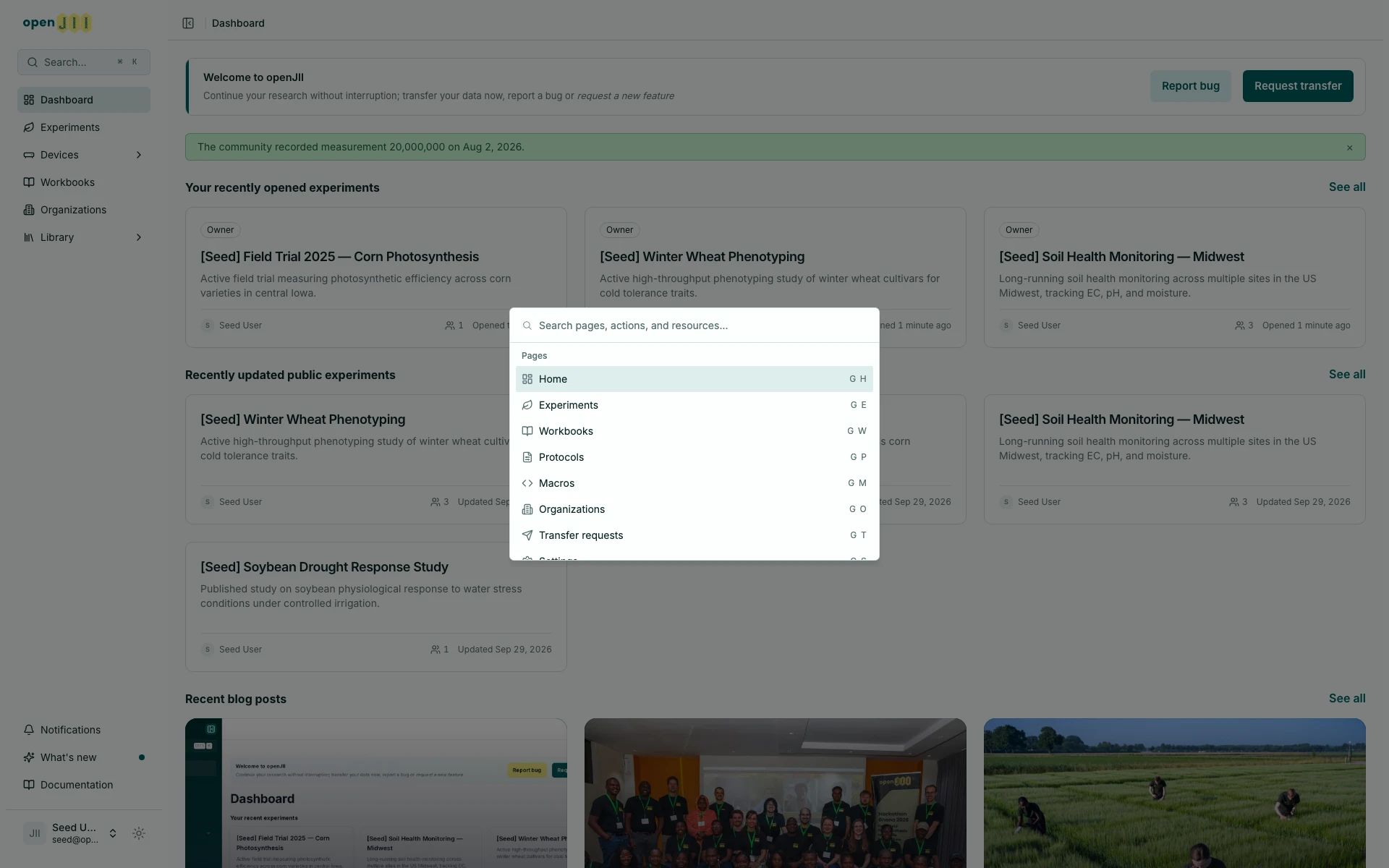
Press Ctrl+K (⌘+K on macOS) anywhere to open the command palette. It searches pages and actions as well as the experiments, protocols, macros, workbooks, and organizations you can access. Matches from every resource type share one relevance-ranked list, so the closest match appears first. Select a result to open it without reaching for the mouse.
Keyboard shortcuts
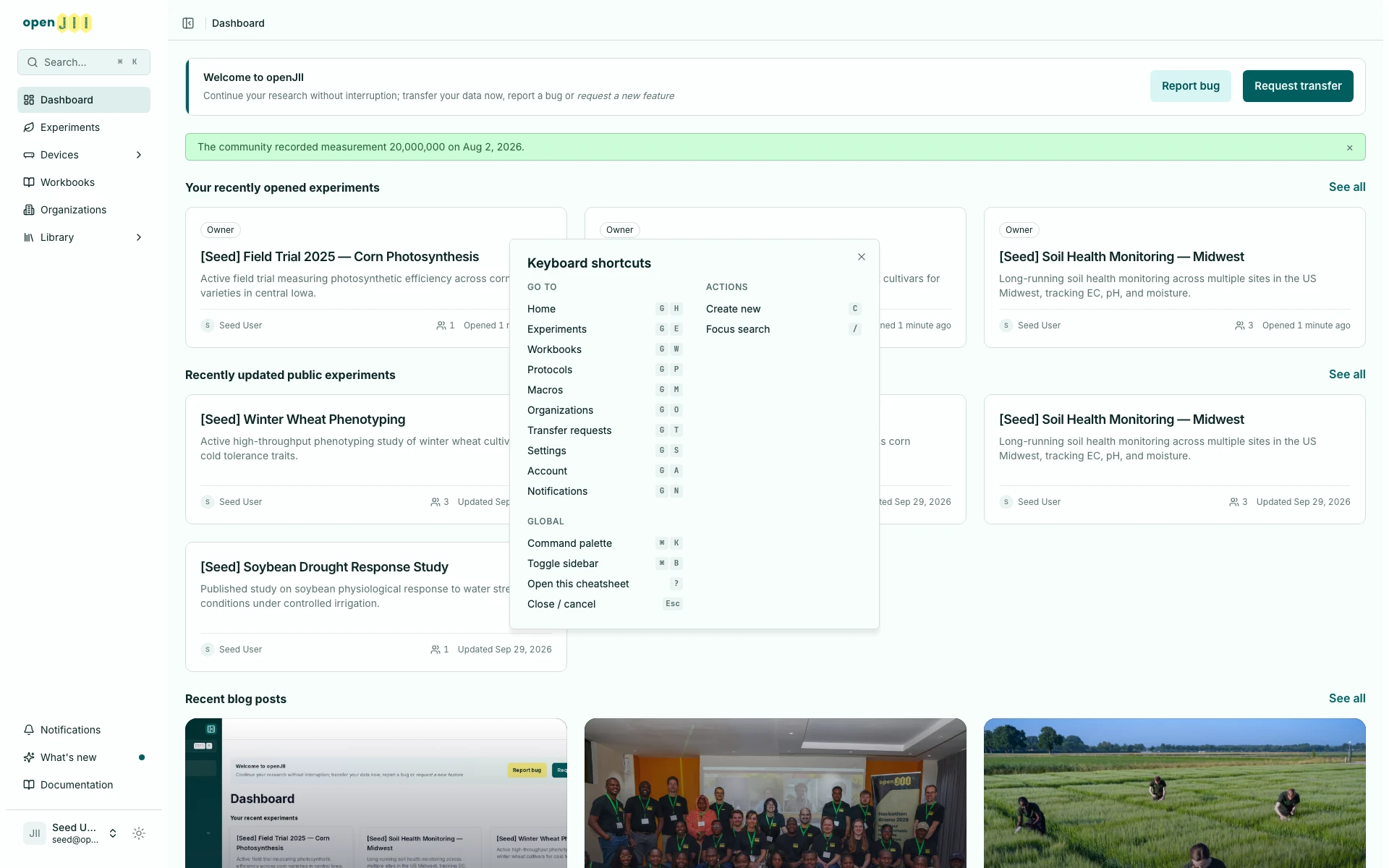
Most navigation has a keyboard shortcut. Press G followed by O to open Organizations. Press ? to open the shortcut cheatsheet and see what is available on the page you are on.
Notifications
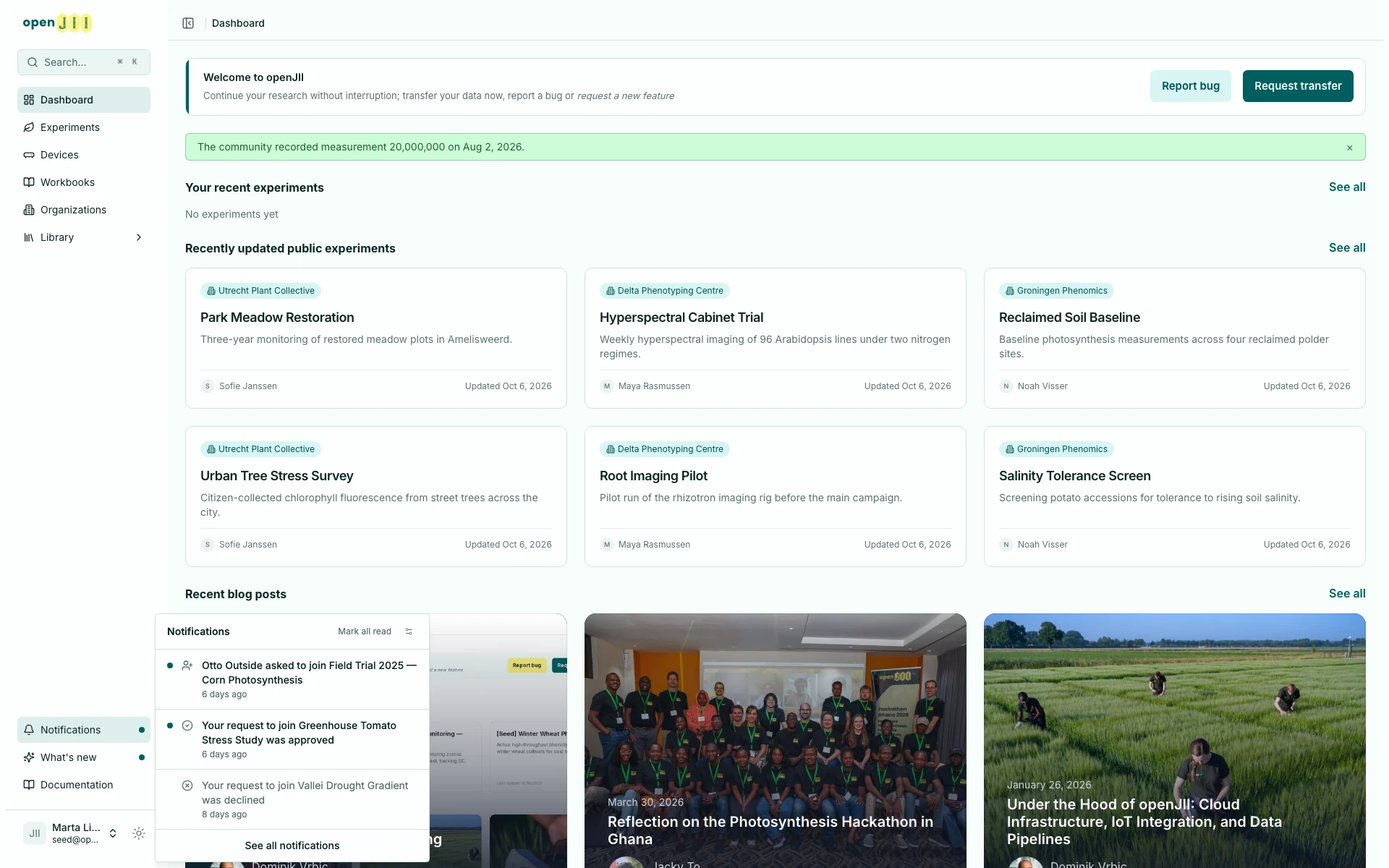
The bell near the bottom of the sidebar is where the platform tells you something happened: somebody asked to join one of your experiments or organizations, a request you made was approved or declined, or somebody gave you, changed or removed your access to something shared with you directly. A dot on the bell means you have something unread.
Opening a notification marks it read and takes you to what it is about. A join request opens that experiment's Collaborators page or that organization's Members page, where you approve or decline it; an approval opens the experiment or organization you were let into. A declined request links nowhere, since there is nothing left to open. An invitation to an organization arrives here too, and opens your Invitations tab, where you accept or decline it.
Mark all read clears the dot and nothing else — a join request you have not decided is still pending and still in the list. The bell shows the ten most recent; See all notifications opens the full history. Press G followed by N to open the bell from anywhere.
The full history heads its rows with the day they arrived — Today, Yesterday and Earlier. All and Unread switch between everything and what you have not opened yet, and the category filter narrows the list to one kind: join requests and invitations, membership and access, project transfers, and the rest. Twenty rows fit on a page, and Previous and Next appear once there are more.
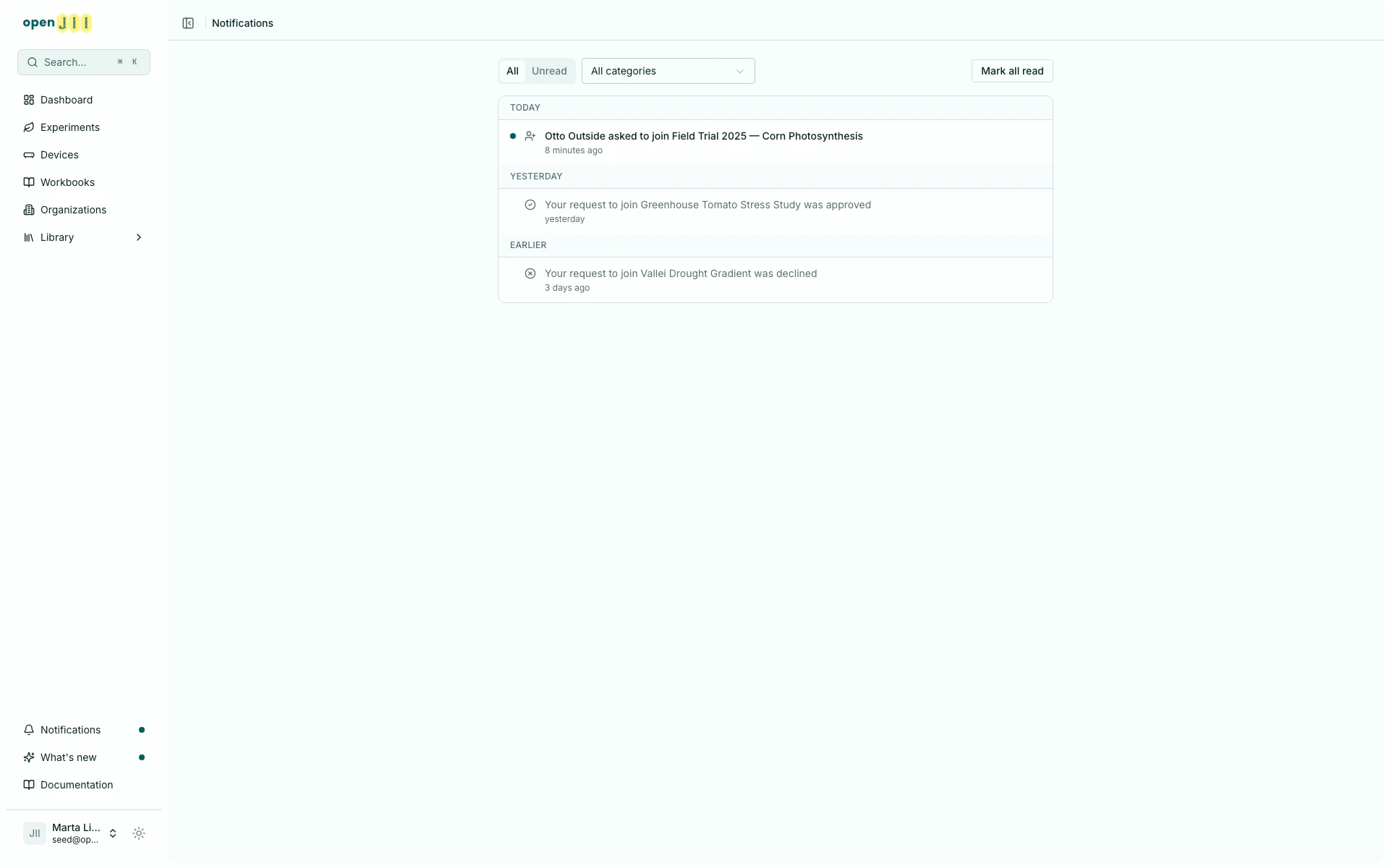
Data exports and uploads do not appear here. To check on an export, open the dataset's export list on the experiment's Data page.
Which notifications also reach you by email
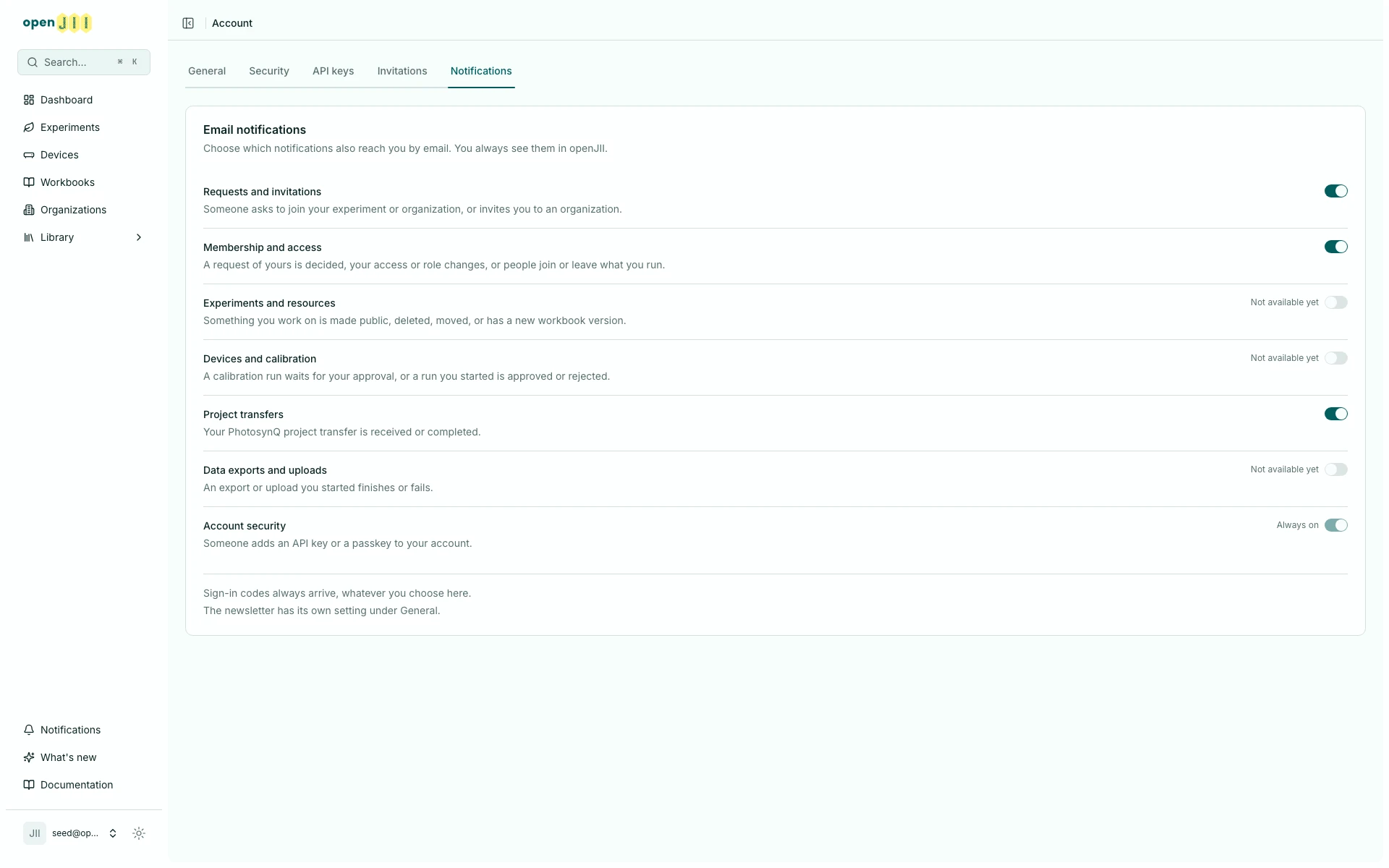
The gear in the bell's header — or Account → Notifications — opens one email switch per category. Switching a category off only stops the email: every notification still arrives in the bell, whatever the switches say. Account security is the exception you cannot turn off, and sign-in codes arrive whatever you choose here.
Today only Requests and invitations, Membership and access and Project transfers can be switched. The other categories are listed but greyed out until their notifications start arriving by email, and each becomes available on its own as those notifications are added.
Home
Home is the page you land on after signing in, and Home at the top of the sidebar brings you back to it. On a wide window it has two columns. The main column holds what you opened recently, public research and blog posts, and the narrower column beside it holds your unread notifications, your last 30 days, what is new on the platform and where to report a problem. On a narrow window or a phone the sections stack in one column, with your unread notifications first. Apart from Notifications, a section with nothing to show is left out, heading and all.
A notice can sit above the sections, one at a time. When the community passes a measurement milestone, the notice marks it. Otherwise it welcomes you and links to Request transfer, where you ask to bring a project over from PhotosynQ (see Project transfers). Close a notice with its × and it stays closed in that browser.
Recently opened
Recently opened lists the five experiments, protocols, macros and workbooks you opened most recently, newest first. Opening the overview page of any of them counts as a visit. Each row shows the type, one detail that suits it, your role when you hold one, and when you opened it. The detail is an experiment's status and organization, a protocol's device family, a macro's language or a workbook's latest published version. The role is Owner, Admin, Member or Viewer, and it is blank for public work you reached without one. Something you can no longer open, something deleted and an archived experiment all drop out of the list. The platform keeps your last 50 visits across every type.
Once you have opened more than one type, chips under the heading narrow the list: All, then one for each type you have opened. Picking a type shows its five newest and a link to that type's own list, such as See all protocols. Your browser remembers the choice, and goes back to All when nothing of that type is left to show.
Before your first visit, the section shows Your experiments instead: work you created, work shared with you and work in your organizations, newest update first, with the date of each update. See all opens the experiments list.
Get started
If you have no experiments yet, Get started sits at the top of Home with three places to begin. Create an experiment opens the new experiment form, Join an organization opens the organizations list, where you can ask to join a public organization, and Browse public research opens the experiments list filtered to public experiments, with the search box ready to type in.
Public research and blog posts
Public research shows recently updated public experiments, newest update first, as many as fill its rows evenly. An update means someone changed the experiment itself: its details, locations, flow or workbook. Making it public or moving it to another organization also counts. New measurements do not. Embargoed experiments stay private until the embargo ends, so they never appear here. When no public experiment has been updated for 30 days, the section says so and shows the date of the latest update. See all opens the experiments list filtered to public experiments.
Recent blog posts shows the three newest posts from the openJII blog in one row, and See all opens the blog.
Beside the main column
Notifications lists up to five unread notifications, and its heading counts every unread one, as the bell does. Opening one marks it read and takes you to what it is about. When nothing is unread it says you are all caught up, and See all opens the Notifications page.
Your last 30 days shows one figure at a time and moves to the next every few seconds. It starts with the measurements your experiments recorded, compared with the 30 days before and drawn as a line. Then come your daily average with the busiest day and how many days recorded anything, the experiments that were active with the contributors and devices behind them, and what the whole community recorded over the same period. The dots under it pick a figure, and the rotation holds while your pointer or focus is on it. The pause button stops it, and it starts paused if your system asks for less motion.
What's new lists the two newest release notes, each opening its release page in a new tab, and See all opens the What's new panel. Under it, Report a bug opens Getting help and request a feature opens the ideas board on GitHub.
Platform activity
Several pages carry a row of activity cards covering the last 30 days. The experiment, protocol, macro and workbook lists carry one for that kind, including the busiest one, and each row in the table draws its own activity strip. An experiment's overview page has the same row under its description, and Home sums up your own in Your last 30 days.
Contributors and devices are counted separately because measurements arrive by two routes: the mobile app records who took a measurement, while a logger publishes on its own and names nobody. An experiment fed only by loggers shows the devices that reported rather than a contributor count.
The figures come from the platform metrics pipeline, which refreshes them every hour, and the platform caches them for up to another hour. Anything with nothing to report is left out rather than shown as a zero.
Account settings
Open your profile menu at the bottom of the sidebar and select Account to reach your account pages. They have five tabs:
- General for your profile details.
- Security for passkeys and sign-in methods.
- API keys for keys that let scripts call the openJII API on your behalf.
- Invitations for invitations to join an organization that are waiting for you, each with Accept invitation and Decline. See Find and join an organization.
- Notifications for the email switches described above.
See Account security and API keys for the Security and API keys tabs.