

Account security & API keys
Use remembered sign-in methods, passkeys, and personal API keys to access openJII securely.
Your account page (Profile menu → Account) is organised into five tabs: General, Security, API keys, Invitations, and Notifications. Invitations is where you answer invitations to join an organization — see Find and join an organization — and Notifications is where you choose which notifications also reach you by email, described in Notifications.
Your sign-in choices
You can sign in with a six-digit email code, GitHub, ORCID, or a passkey. These methods all open the same account and have the same permissions. The login page only shows methods that are available in the current environment and browser.
Sign in faster
The login page remembers how you last signed in and marks that method with a Last used badge, so you can pick the same one next time.
This hint is stored in the browser. It is not an account preference, and clearing site data may reset it.


Passkeys
Passkeys let you sign in without a code, using your device's screen lock (fingerprint, face, or PIN) or a hardware security key.
The passkey option is hidden when the browser does not support WebAuthn.
Create a passkey
After signing in without a passkey, the platform offers to create one on the spot:
The invitation appears at most once per browser session. If you select Not now three times, that browser stops showing the invitation; you can still create a passkey from Account → Security.

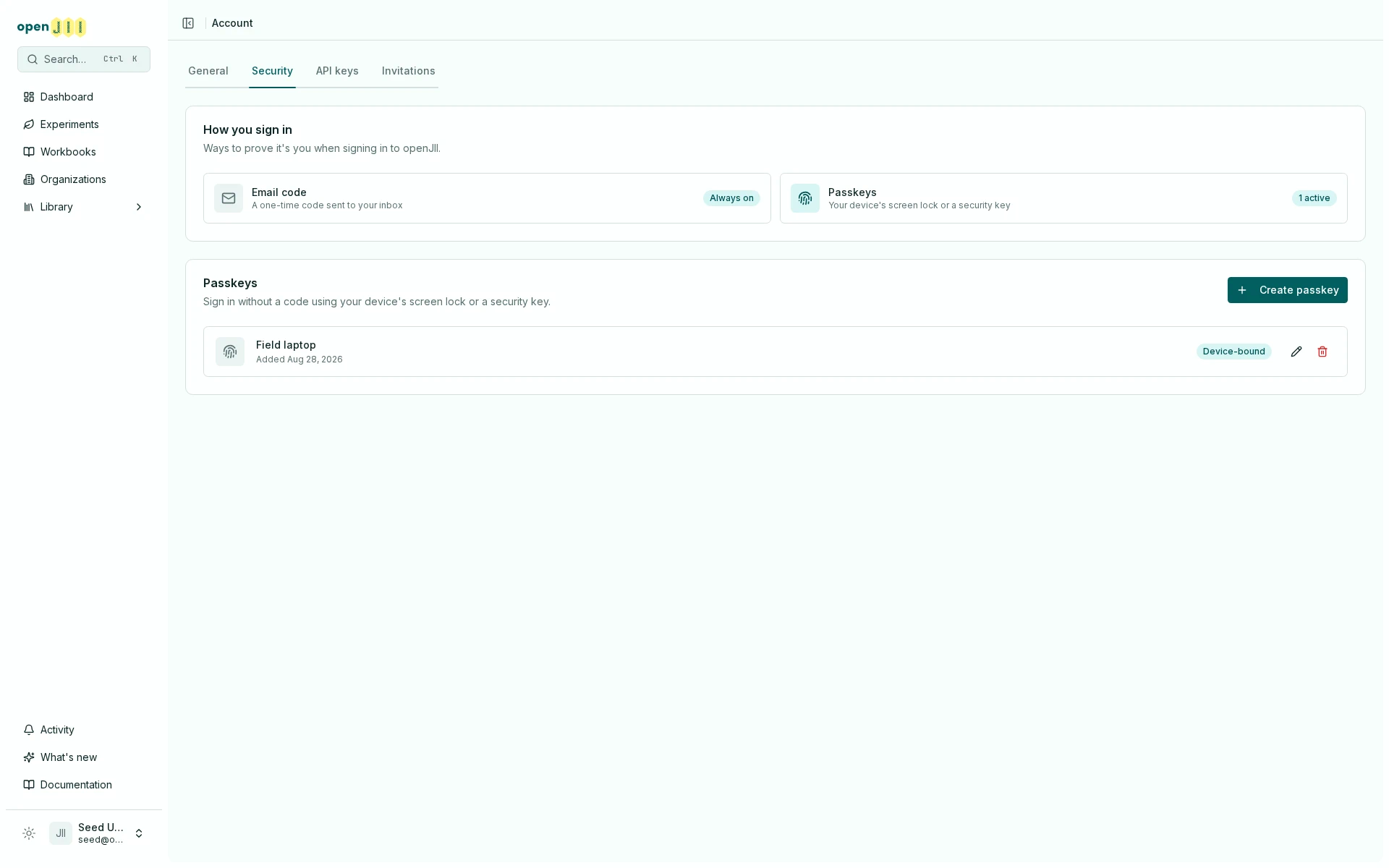
You can also create one any time from Account → Security:
- Select Create passkey and confirm with your device when the browser asks.
- The new passkey is labelled after its provider (for example, Google Password Manager or Windows Hello); rename it any time from the list.
You can rename or delete a passkey at any time from the same table. Deleting a passkey does not sign you out; it only removes that sign-in method. Keep another working sign-in method until you have tested the passkey on the devices you use. The table also shows when each passkey was added and whether its authenticator reported it as Synced or Device-bound.
Sign in with a passkey
On the login page, choose Sign in with a passkey, or start typing in the email field and pick your passkey from the browser's autofill suggestion.
API keys
API keys let scripts and integrations call the openJII REST API on your behalf, without a browser session.
An API key does not create a separate service identity or bypass permissions. It acts as your user account, so it can only access resources and actions that you can access. It cannot be used to call authentication-management routes to create keys, register passkeys, or change sign-in settings.
Create a key
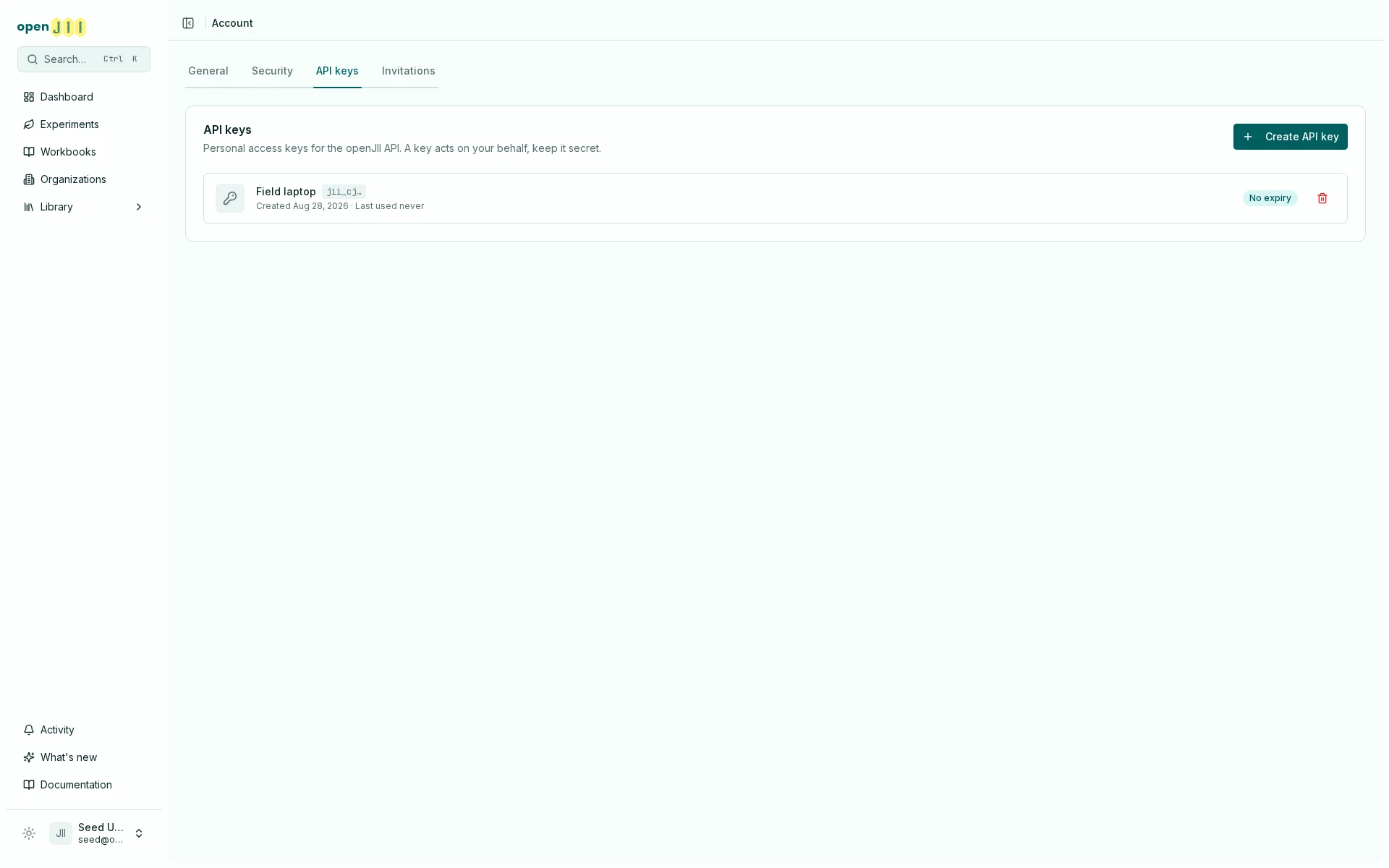
- Go to Account → API keys.
- Select Create API key, name it, and optionally pick an expiration (30 days, 90 days, 1 year, or no expiration).
- Copy the key immediately. It is shown only once and cannot be retrieved later.

Use a key
Send the key in the x-api-key header. See the
REST API reference for details and an
example.
Each key is limited to 100 requests per minute by default. The account page shows when a key was created, when it was last used, and when it expires. The stored prefix helps you identify a key without revealing the secret.
Revoke a key
Select the trash icon next to a key to revoke it. Revocation is immediate and
permanent; any script still using the key will receive 401 Unauthorized.
Keep keys secret. A key acts with your account permissions. If a key leaks, revoke it immediately and create a new one.
Sessions and access
Browser sessions stay active while you use the platform and expire after about 30 days without activity. Revoking an API key stops that key; it does not sign out browser sessions or revoke other keys.
Deleting your account revokes its passkeys and API keys, removes linked OAuth credentials, and ends all browser sessions before the account is anonymized.
It also gives up every organization association: you leave every shared organization and team, any join request still waiting is withdrawn, and any invitation still waiting for your address is cancelled. Your personal workspace is the one you keep, because it still holds whatever it owns. Nothing you own moves — it stays where it is, and whoever else can administer it keeps their access.
Deletion is refused while removing you would strand other people. Two things block it: being the last Owner of a shared organization, and being the last person who can administer a resource. The dialog lists exactly what is in the way — promote another Owner, or hand the resources over, then try again. Your personal workspace never blocks deletion. See Access troubleshooting.
openJII evaluates the same organization and resource permissions after any successful sign-in method. For the current IAM rollout and the intended organization/team collaboration model, read Identity & access management.
Create your account
Create an openJII account with an email code, GitHub, or ORCID, then optionally add a passkey. One account works on web and mobile.
Key concepts at a glance
A plain-language primer on the words you will see across openJII: experiment, protocol, device, sensor, access levels, and visibility.