

Working with workbooks
Attach a versioned field workflow to an experiment and review upgrades safely.
A workbook is the data-collection design an experiment runs. Its ordered cells can contain instructions, questions, protocols, device commands, analysis macros, branches, markdown notes, and generated outputs.
Workbooks also have a description. Use it to state the purpose, intended device or sample, and field method so people can distinguish similarly named designs.
Attach a workbook
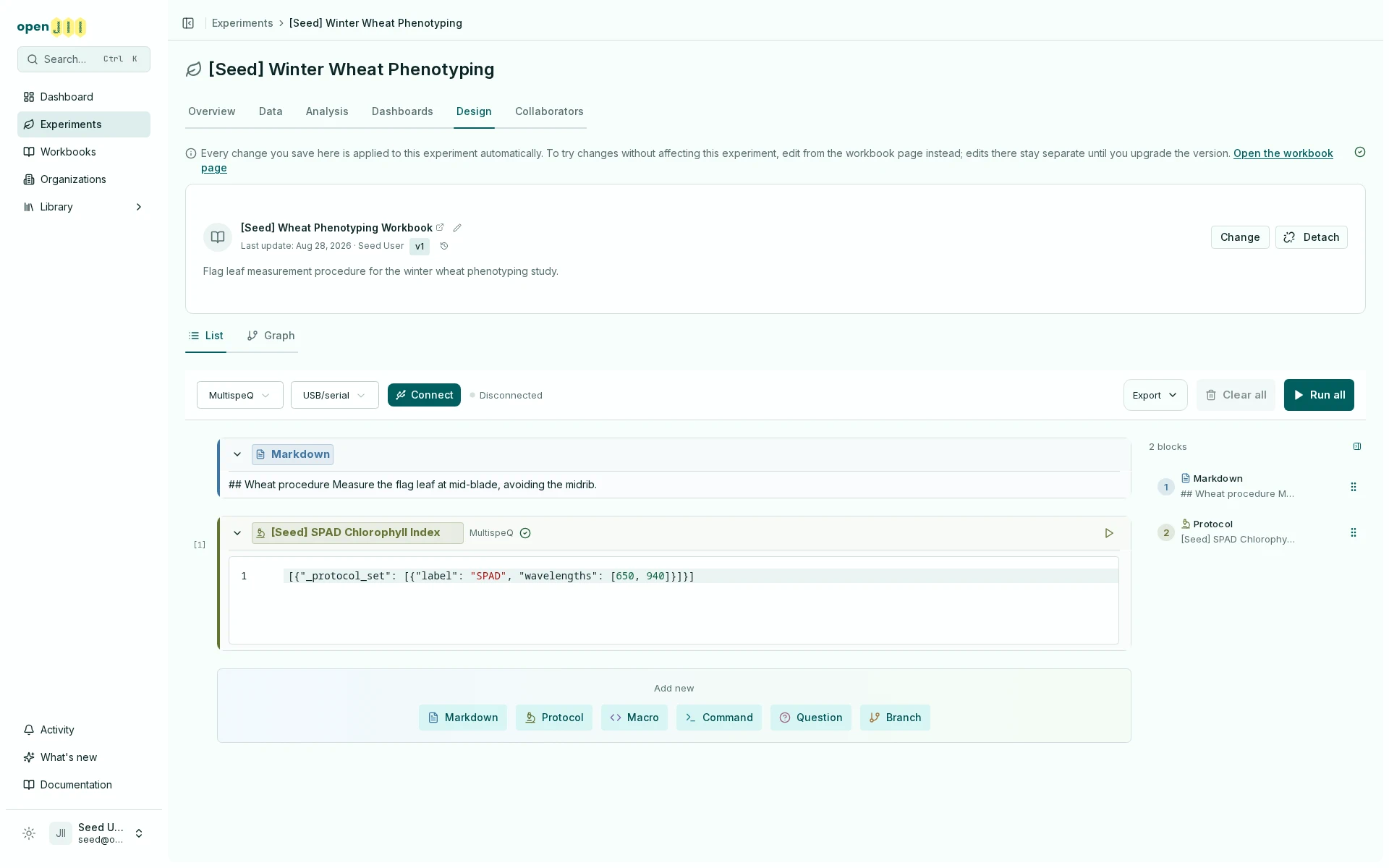
You can choose a workbook in the Details step when creating an experiment. For an existing experiment, open its Design tab:
- select or search for the workbook;
- attach it to the experiment;
- confirm the pinned version shown beside its name;
- test the full flow on the mobile app.
Attaching a workbook publishes its current cells as a numbered version and pins the experiment to that immutable snapshot. The pinned snapshot includes the referenced protocol and macro code, so later edits do not silently change what the experiment is collecting.
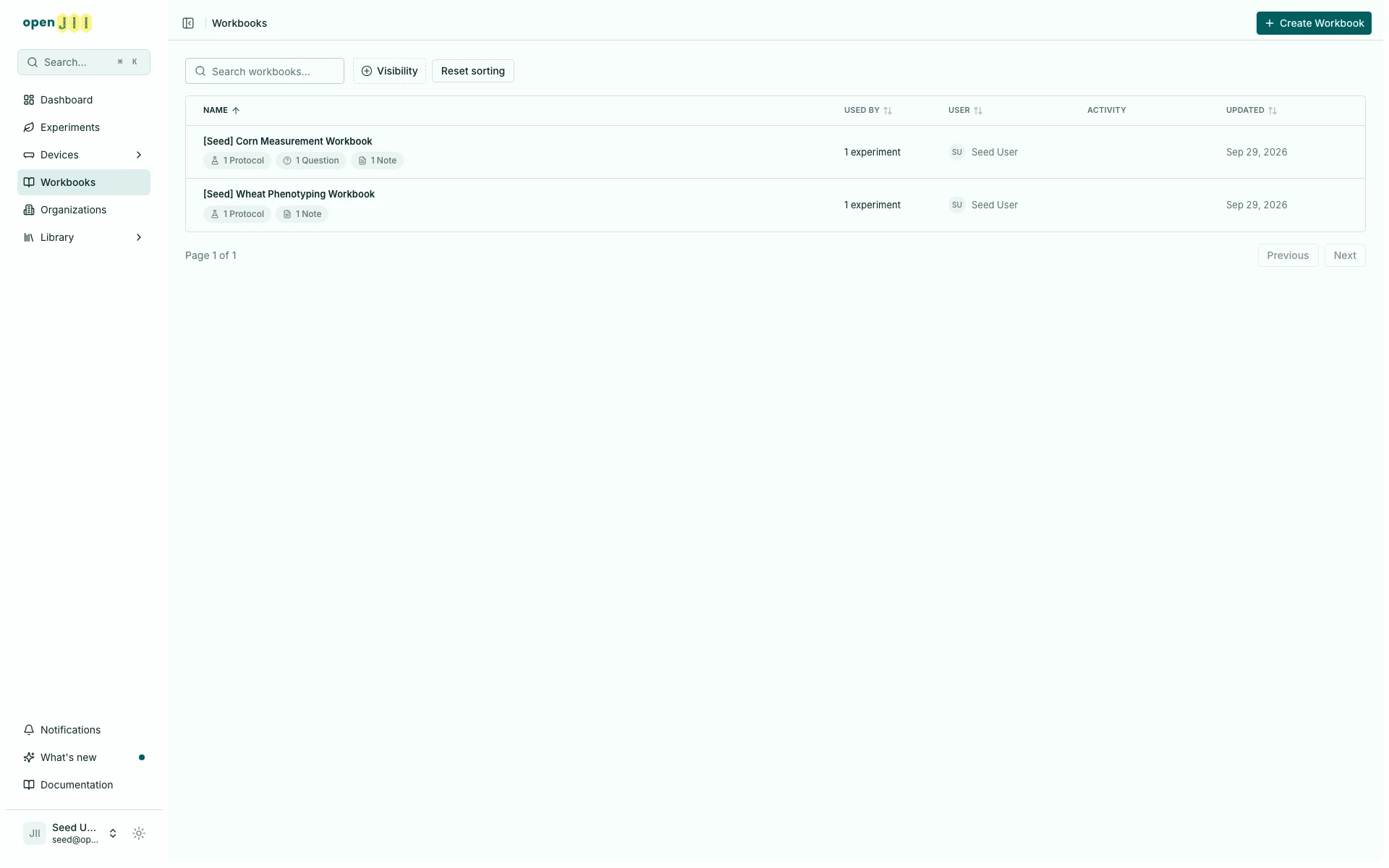
Open workbooks (opens in a new tab)Filter the workbook list
On the Workbooks page, select Visibility and pick Private or Public. The button shows how many values you picked, and picking both shows workbooks that match either. Clear filters removes the filter and keeps your search and sort. When nothing matches, the empty list offers the same button. The filter stays in the page URL, so a refreshed or shared link opens the same view.
Sort the workbook list
On the Workbooks page, select Name, Used by, User, or Updated to sort the list. Click once for ascending order, again for descending order, and a third time to clear that column. Hold Shift to add a second sort. The selected order stays in the URL, so a refresh or shared link keeps it. Reset sorting clears the selection and returns to the default order.
In a phone-width browser window the list shows only the Name column, so Name is the only heading you can select there; the other columns appear as the window widens. A sort chosen in a wider window, or carried in a shared link, still applies while its column is hidden.
Use connected-device context
Branch cells include a pinned Connected device source. It exposes the
connected device's family, id, name, zero-based index, and
firmwareVersion. A device-based branch can send each connected device to its
own protocol or command cell; unmatched devices sit out that measurement round.
Macros receive earlier workbook values through a read-only ctx namespace.
Each completed upstream question, protocol, command, or macro is available under
its canonical workbook name, for example ctx.soil_moisture. Multi-device
outputs are scoped to the device whose macro is running, and ctx.$device
contains that device's runtime identity. In the web workbook runner, a macro can
run from earlier ctx values such as answers even when no protocol measurement
precedes it.
See Writing macros for verified
Python and JavaScript examples using json, ctx, and ctx.$device.
Inspect measurement outputs
Open Timeseries on an output cell to view a supported measurement. openJII recognizes the data itself, so a protocol labeled Generic can still show a MultispeQ or Ambit visualization. This also applies to saved results and to each device in a run with several devices.
MultispeQ charts use the source protocol to reconstruct the pulse sequence and light settings. Inline JSON or YAML command outputs use the command stored in the cell. The axis is labeled Modeled protocol time (s). A pinned workbook uses its saved protocol definition. If the definition is missing or the data cannot be decoded, the tab explains the problem instead of inventing a time axis. If recorded sub-protocols no longer match the definition, the chart reports the mismatch and leaves every reading available in JSON.
Ambit ambit.trace/3 results supply their own timestamps or sampling intervals.
The main plot shows Fluorescence / reference, dividing the 630 nm signal by
its reference at matching timestamps. This is a signal ratio, not Fv/Fm. Zero
reference readings use the mean measured reference, as in the Ambyte trace
analysis; the chart states when this substitution is used. Missing, invalid, or
misaligned reference channels show an explanation and the raw channels instead.
Temperature has its own plot in °C. A single reading appears as a value with its time. Expand Raw detector channels to inspect each channel on its own scale with the original values. Estimated timing is labeled in the chart heading. Multiple traces remain separate. Invalid series and data beyond the chart limits show an explanation; JSON retains the complete result.
Table and JSON remain available for every result. An expandable numeric array in the table uses sample index, which is not necessarily elapsed time. Ordinary arrays and scalar readings do not acquire a Timeseries tab merely because they contain numbers.
Edit and publish changes
The workbook's owner, anyone with Can edit on the workbook, and owners and admins of the organization that owns it can edit the live draft. Workbooks autosave. Saving the draft does not change what an experiment runs: a new version is created when someone who can edit an experiment attaches the workbook or upgrades the experiment to it, and either there is no version yet or the draft, or the code of a protocol or macro it uses, has changed since the latest one. Editing the workbook from an experiment's Design tab moves that experiment to the new version on each save. If you cannot edit a protocol or macro the workbook uses, fork it before editing so the workbook points to your copy.
You can also fork a whole workbook: open it and select Fork to create your own editable copy of all its cells, then attach that copy to your experiment and adjust it. This is the recommended way to start from a baseline workbook someone else published.
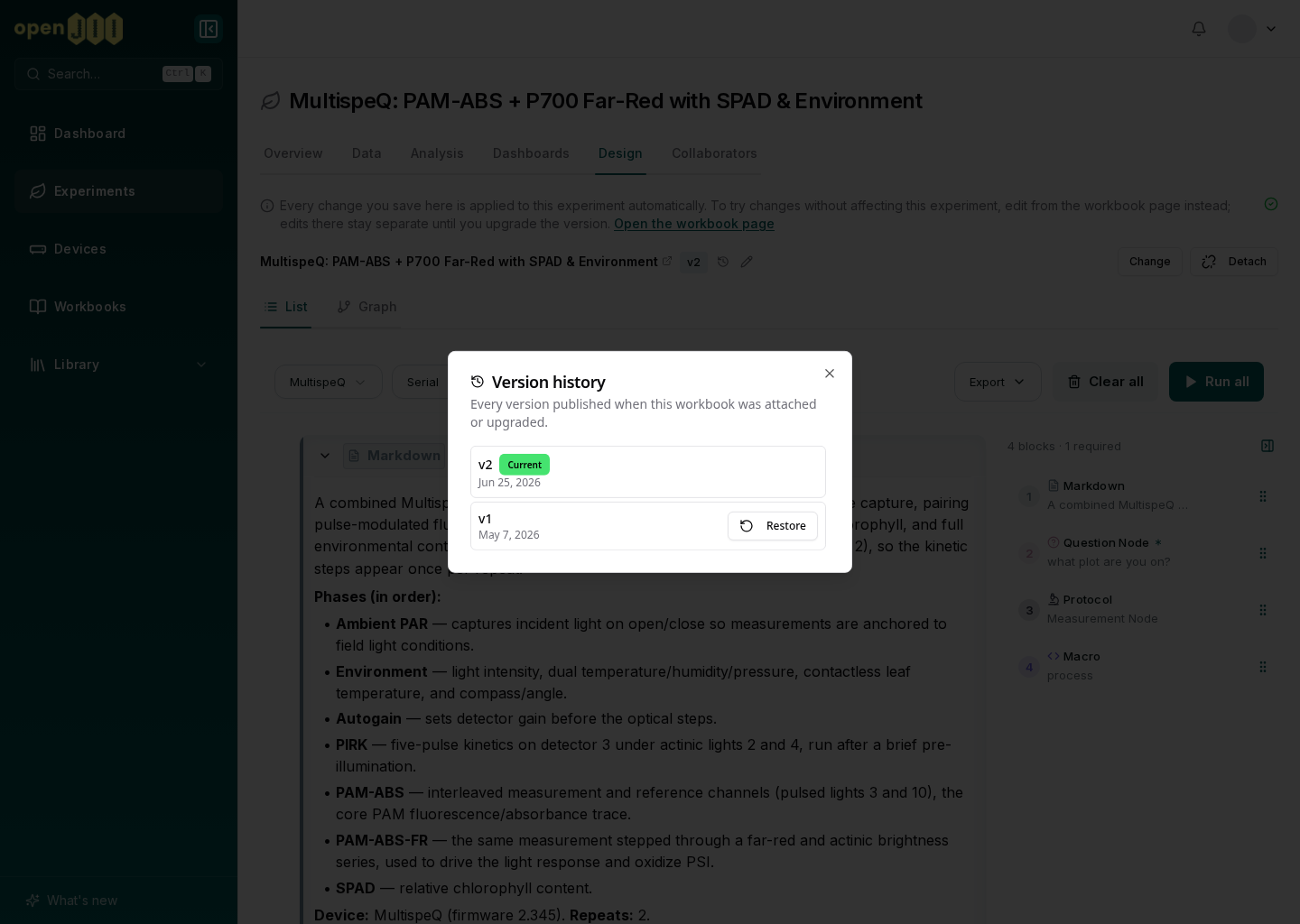
An experiment continues to use its pinned version until someone with Can edit changes it. A newer version produces an update indicator. Before upgrading, open the review:
- compare added, removed, and changed cells;
- review protocol and macro code changes;
- resolve missing references or mixed sensor families;
- run a representative field test.
The version history can also repin an older or newer published version. Treat that as a methods change and record why it was made.
Never upgrade a running field experiment only because an update is available. Review the diff and decide whether mixing versions is acceptable for the study.
For protocol choice and safe adaptation, see Protocols: choosing & adjusting.