

Protocols: choosing & adjusting
Choose, test, and safely adapt a measurement recipe.
A protocol is the machine-readable measurement recipe sent to a device. It contains device-specific steps and parameters; a workbook places that protocol inside the wider field flow with instructions, questions, branches, and analysis.
Choose a protocol
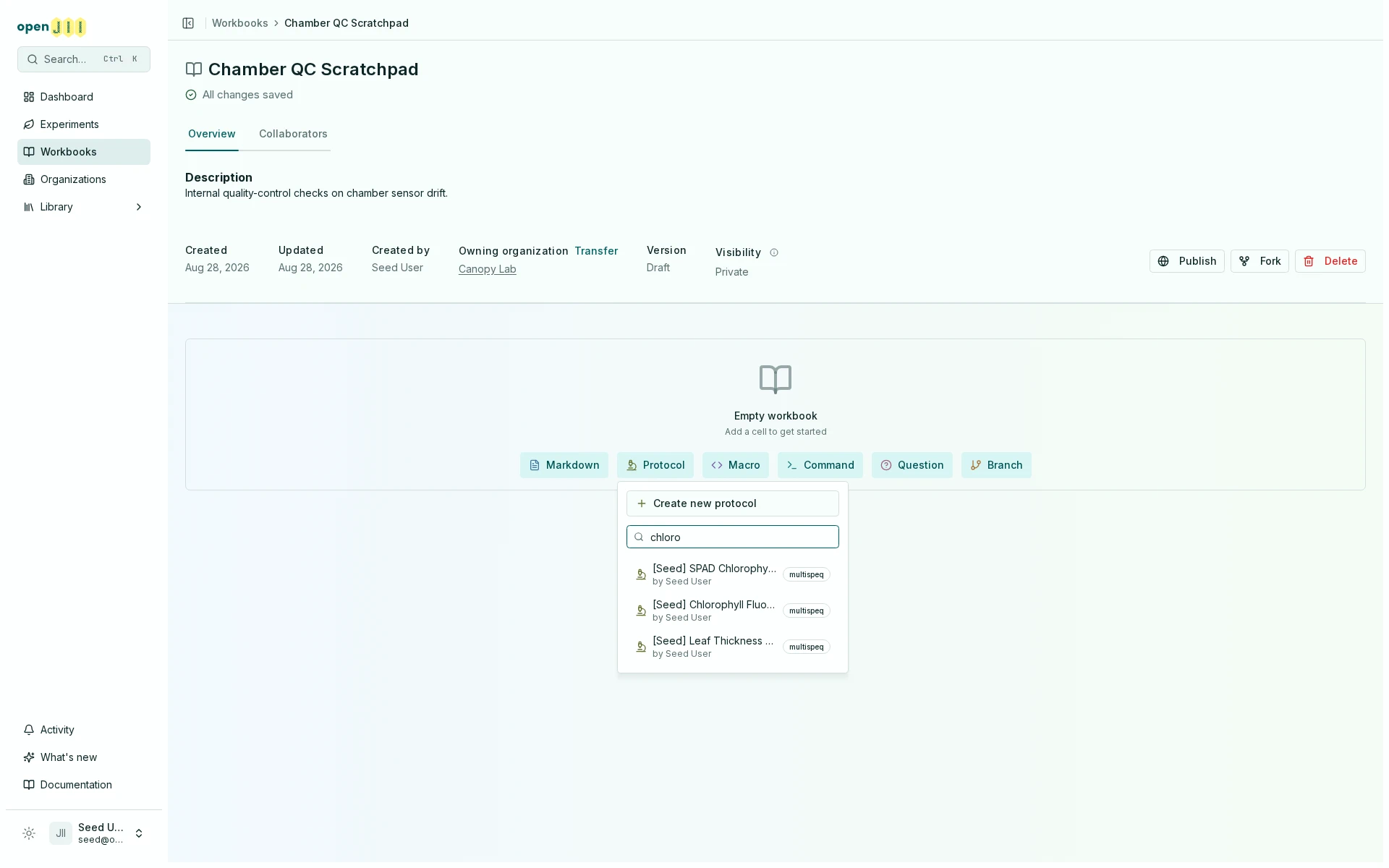
- Open Workbooks and edit the workbook used by your experiment.
- Add a Protocol cell.
- Search by protocol name and inspect its sensor family and creator.
- Select the protocol that matches your hardware and method.
- Test the workbook before publishing or attaching a new version.
The library can mark curated protocols as preferred, but the researcher remains responsible for checking that the recipe matches the study design and hardware.
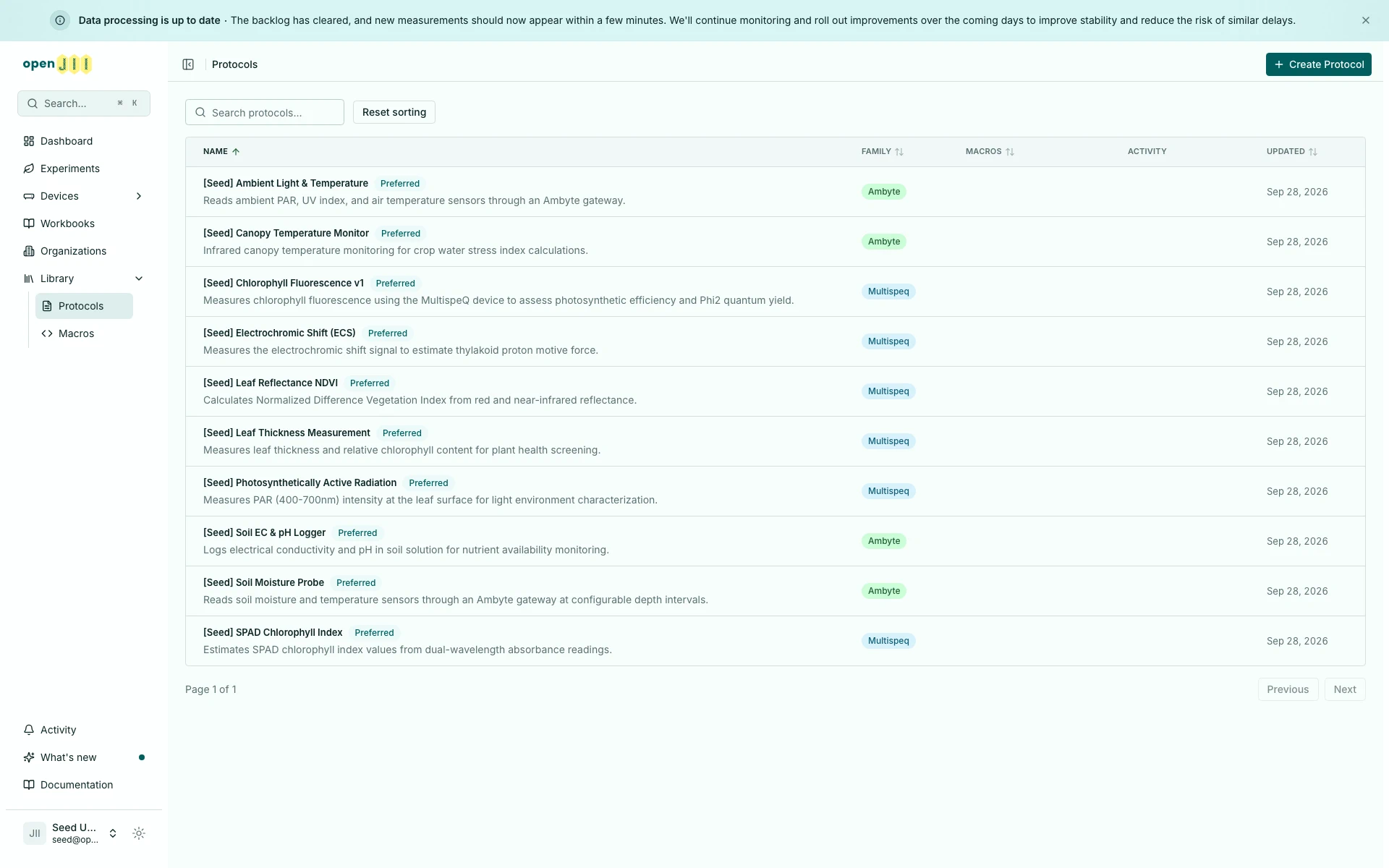
Sort the protocol list
On the Protocols page, select Name, Family, Macros, or Updated to sort the list. Click once for ascending order, again for descending order, and a third time to clear that column. Hold Shift to add a second sort. The selected order stays in the URL, so a refresh or shared link keeps it. A selected sort replaces the default order, which lists your own and preferred protocols first. Reset sorting clears the selection and returns to that default order.
In a phone-width browser window the list shows only the Name column, so Name is the only heading you can select there; the other columns appear as the window widens. A sort chosen in a wider window, or carried in a shared link, still applies while its column is hidden.
Adjust without overwriting someone else's work
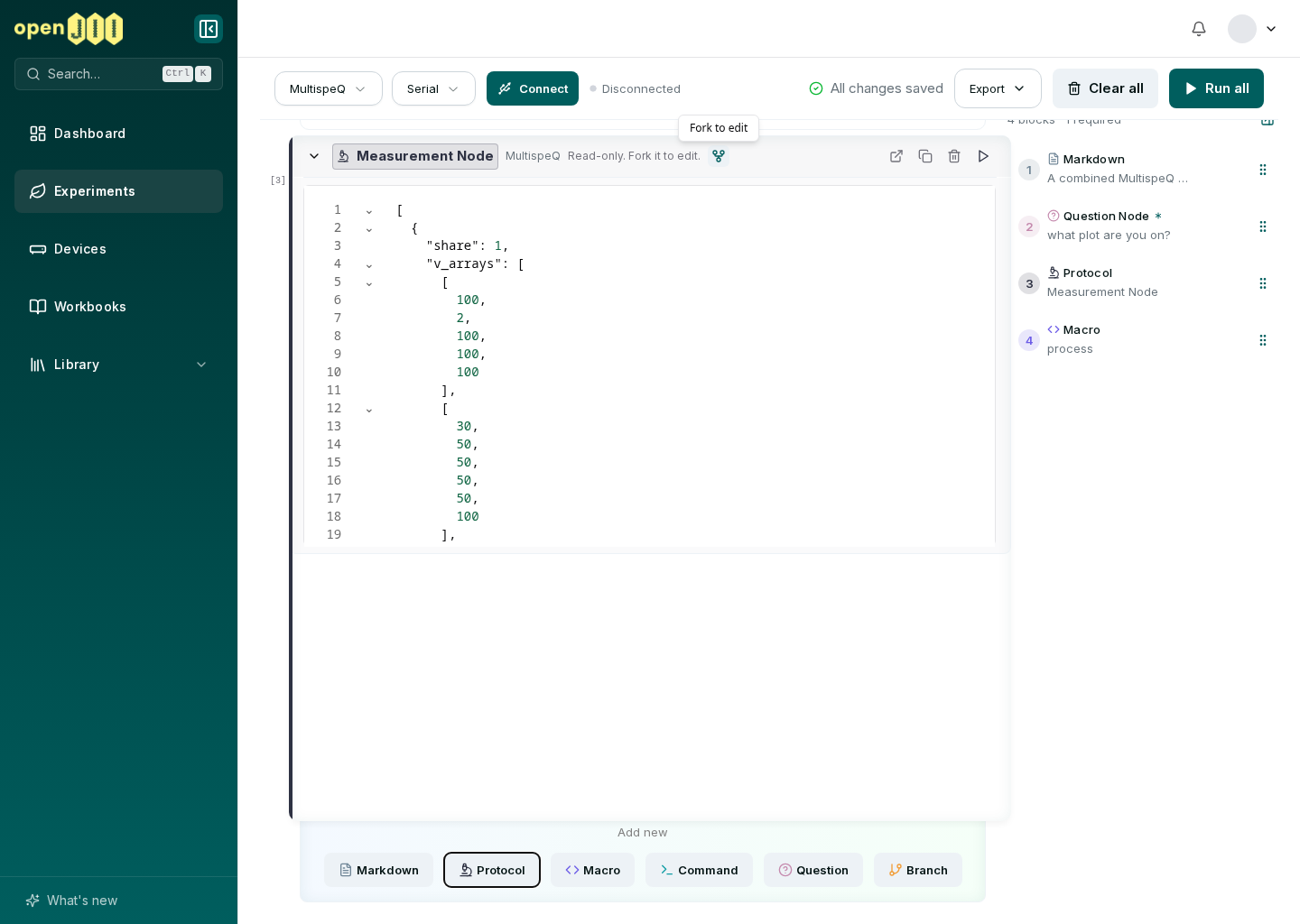
Only a protocol's creator can edit its settings and code. When a workbook uses a protocol owned by someone else, use Fork in the protocol cell. openJII creates an editable copy, records its link to the original, and repoints that workbook cell to the copy.
Rename the fork clearly, make the change in its protocol settings, then test it with the connected hardware. Changing a protocol you own updates that protocol; it is not an experiment-only “dynamic setting.” The current branch has no separate bounded-adjustment control that changes parameters only inside one experiment.
A protocol change can alter the meaning and comparability of future data. Record the reason in the experiment description or metadata, and use workbook versioning to keep the collection flow reviewable.
Learn how pinned versions protect a running experiment in Working with workbooks.
Ready to change the JSON itself? Continue with Writing protocols, then pair the measurement with a tested analysis macro.