

Join an experiment from the app
Enter a join code, scan a QR, or ask to join a public experiment from the Android app.
You can only measure into an experiment you are part of. There are three ways to become part of one, and all of them work from the phone.
- Someone adds you on the web. Nothing to do here; the experiment appears the next time the app loads.
- An organizer gives you a join code or a QR. You are in immediately.
- You find a public experiment yourself and ask to join. Someone approves it on the web.
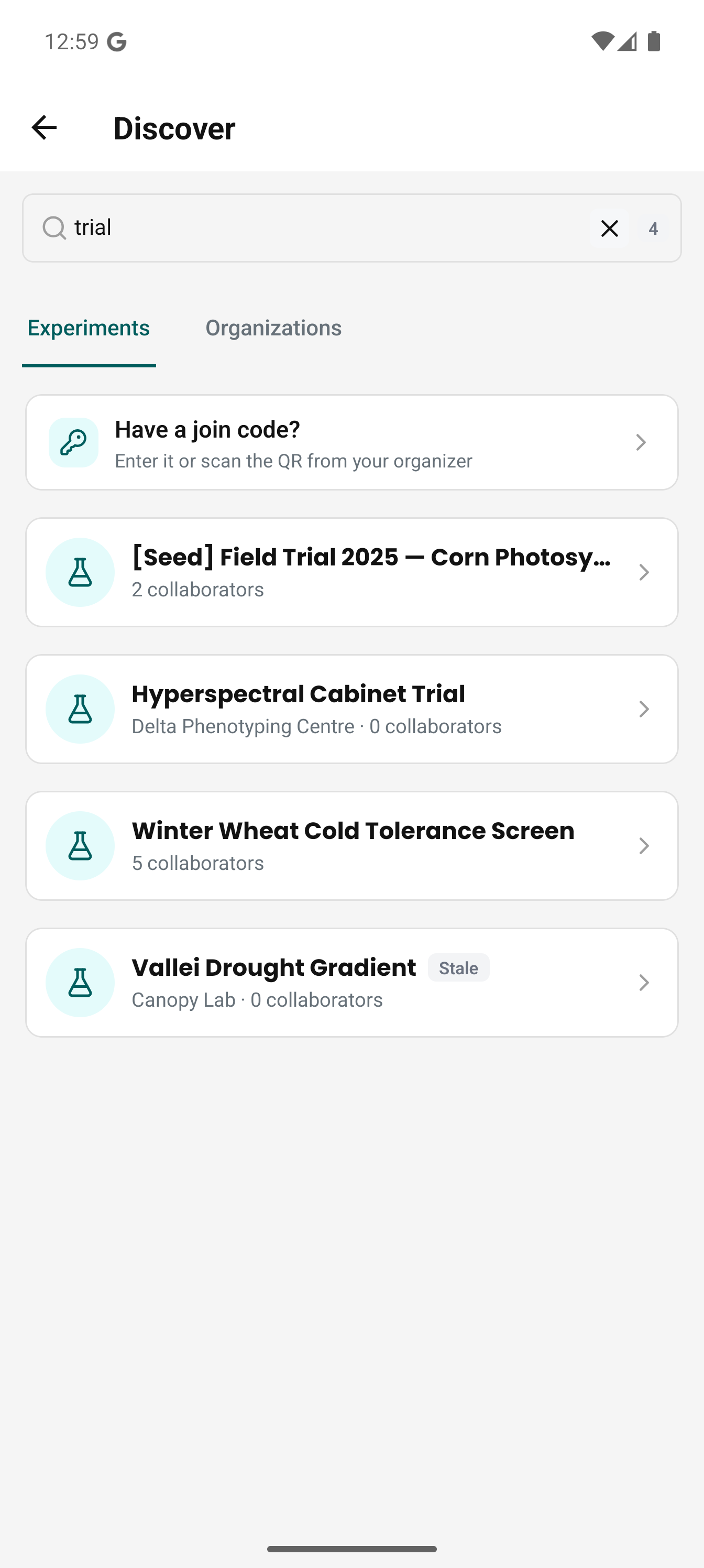
The last two both start on the app's Discover screen, whose Profile and Home entry points, tabs and shared search field are described in Find and join an organization; everything below happens on its Experiments tab.
Use a join code
Have a join code? sits at the top of the Experiments tab. It opens a sheet with one field and a Scan QR button.
Type the code the organizer gave you. Case does not matter, the hyphen is added as you type, and you can paste the whole link from the QR instead of the code. Or select Scan QR and point the camera at the projected or printed code; the app asks for camera permission the first time and nothing else changes.
Either way you land on a preview naming the experiment before anything happens.
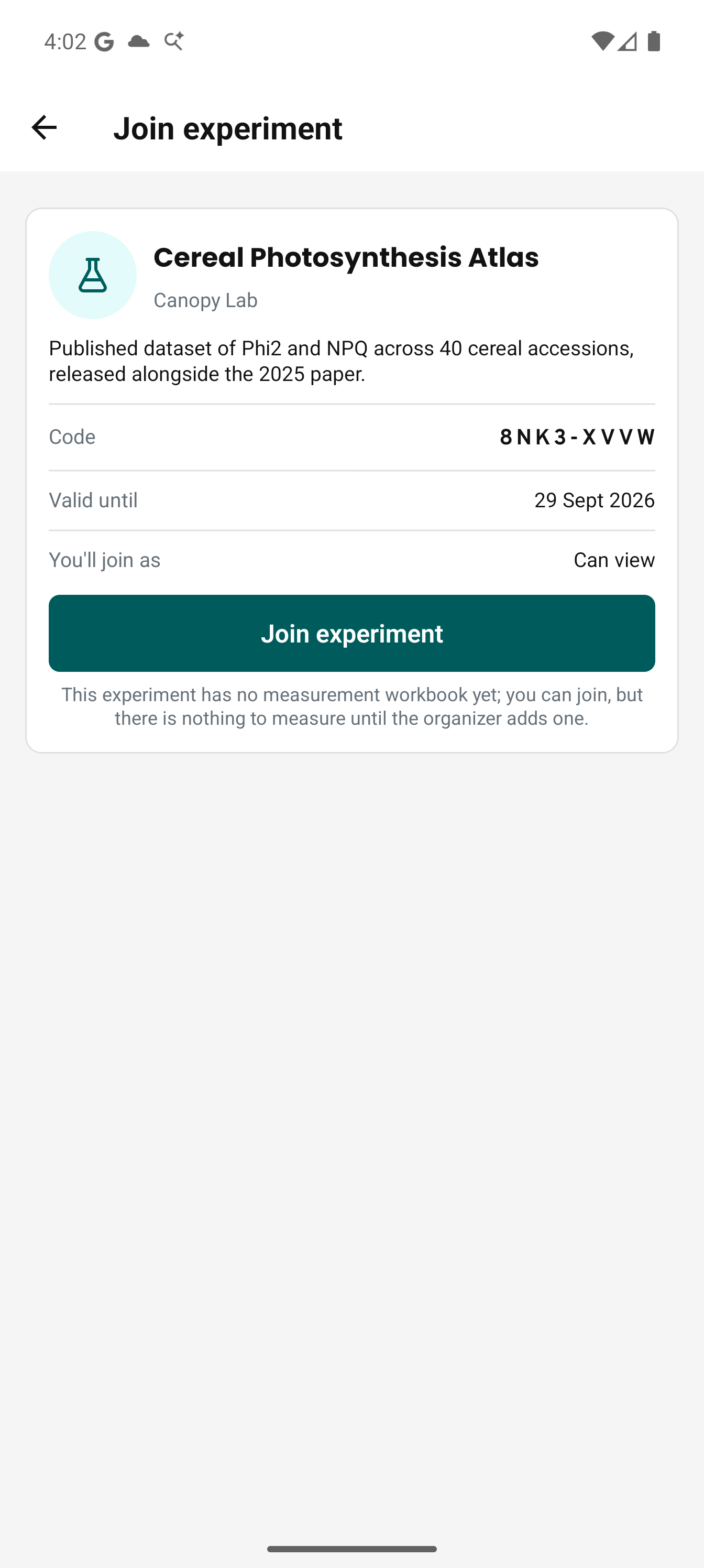
Read it, then select Join experiment. You are in at once, with no approval step, and the app takes you to the experiment where Start measuring is the main action. A code joins you with Can view, the level that lets you measure; Collaborators & access levels explains what the levels allow. Scanning the same code twice is harmless: the preview says you are already in and offers to open the experiment instead.
A code can stop working. If it does, the app says the code has expired or was revoked, or that it is not valid at all, and offers to let you try another. Ask the organizer for the current one; they can issue a new code in seconds.
If the phone's own camera app opens the QR instead, it lands on a page with the code printed on it and a link into the app. Signing in does not carry you back to that link. If you had to sign in on the way, go to Profile → Find experiments and organizations → Have a join code? and type the code from that page.
Ask to join a public experiment
The Experiments tab shows the experiments you can see: the ones you are already in and the public ones you can ask to join, tagged Joined or Requested where one applies. A private experiment you are not part of does not appear there. Open one you are not in and it offers Request to join, with an optional message of up to 250 characters that whoever decides reads beside your name.
Once sent, the experiment shows your request as pending, with Cancel request under it. Cancelling asks you to confirm, and then you are back to Request to join and can ask again later.
Requests are decided on the web, so an organizer answers yours from a browser. You get an email when they do. There is no push notification, so the app catches up the next time you open it: the experiment shows Joined, and Start measuring replaces the pending row.
When the app says the workbook is not shared with you
Measuring runs the workbook pinned to the experiment, and a workbook carries its own visibility. A public experiment can have a private workbook behind it, and joining the experiment gives you no access to that workbook. When that happens, the measurement screen tells you the workbook is not shared with you and asks you to contact the organizer, and the start button stays disabled.
Nothing you can do on the phone fixes it. Tell the organizer, who can make the workbook public from the web in one step.
You may also see that the experiment has no measurement workbook yet, said either on the join preview or on the experiment itself. That is not an access problem: you have joined and there is simply nothing to measure until someone attaches a workbook.